How to Use AI Assistant Hanna in AIV Office for PowerPoint
05/10/2026
The Old Way of Making Slides and the Cost
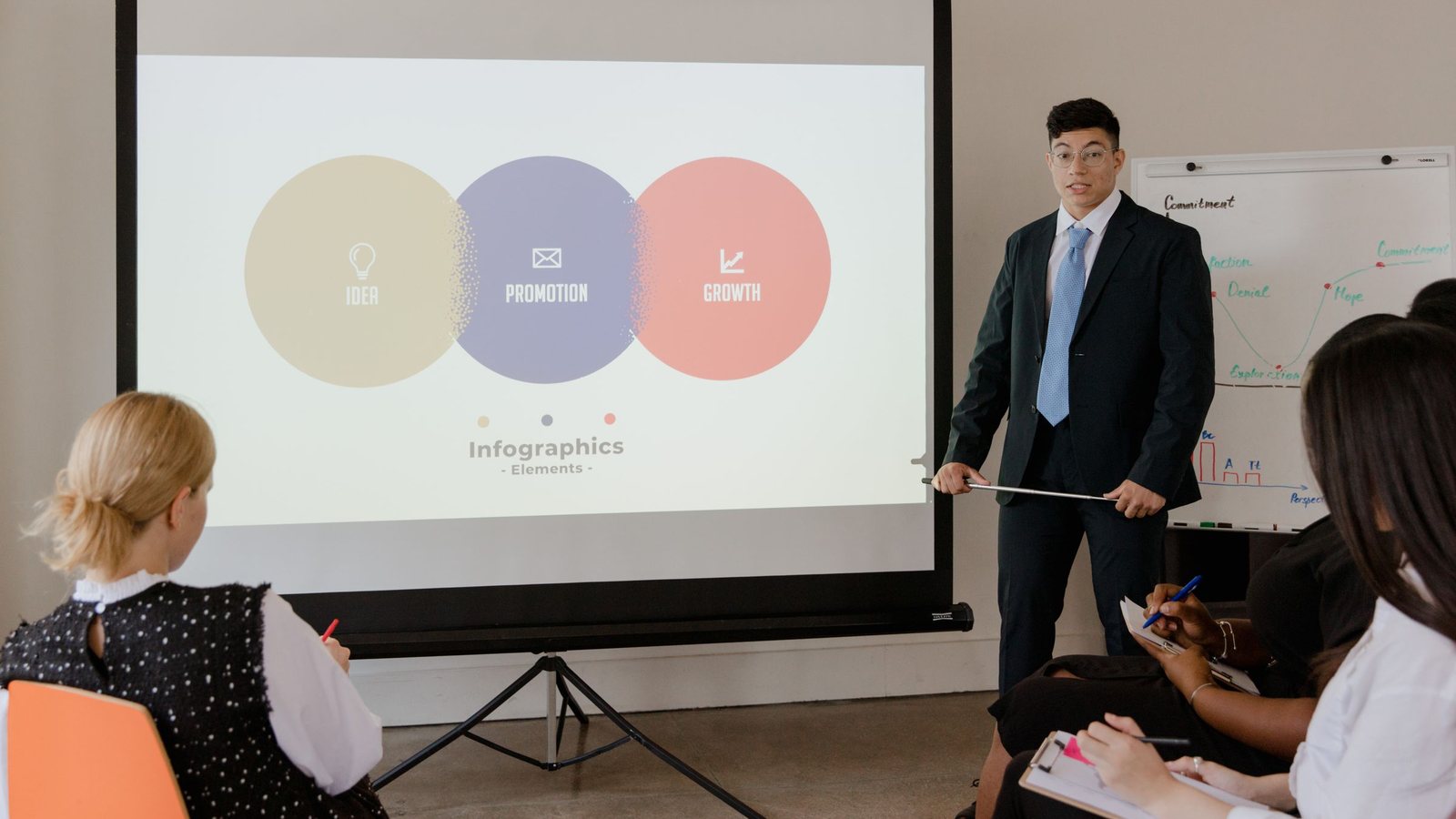
Before AI, every presentation deck was a small battle. Creators had to spend hours aligning margins, adjusting fonts, and copying data from spreadsheets into text boxes. If a manager requested a change in the primary color scheme, you had to start over. The hidden cost here is not just labor costs, but the fatigue that leads to errors. A mistyped number, a broken image due to a cut link, and the entire morning meeting is delayed. This is the reality that many operations directors, like myself, have witnessed over the years.
Now, with the AI assistant Hanna in AIV Office, this process changes completely. You don't need to know design. You just need data. Hanna handles the heavy lifting; you just need to review and refine. The difference lies in shifting from "creating from scratch" to "reviewing results." This is a crucial shift that allows teams to focus on content rather than form.
Step 1: Preparing Input for the Office AI Assistant
To help Hanna work effectively, you need clear input. Not raw data, but organized data.
- Source Data: An Excel file or spreadsheet containing the data to be presented. For example: quarterly revenue, inventory ratios, or project progress.
- Presentation Goal: A concise sentence describing what you want the audience to remember. For example: "Convince the board to approve the budget for the warehouse expansion project."
- Desired Style: Professional, minimalist, or creative. Hanna in AIV Office can adjust the tone and layout based on this suggestion.
Signs this step is complete: You can point to the data file and clearly state: "This is the data, this is the purpose, this is the style." If you are still torn between two styles, pick one to start. Hanna can adjust it later.
Step 2: Building the Slide Skeleton with Hanna
Open AIV Office. Call Hanna. Drop the data file into the chat box or drive. Type the command: "Create a 10-slide outline for a presentation on [Project Name] based on the attached file. Focus on three main issues: Cost, Risk, and Benefits."
Hanna will analyze the data and propose a structure. It might suggest: Slide 1 is an overview, Slides 2-4 are detailed data, Slide 5 is a comparison, Slides 6-8 are risk analysis, Slide 9 is recommendations, and Slide 10 is the conclusion.
Action required: Read the outline. Delete unnecessary parts. Add missing parts. The important thing is that you are editing logic, not pixels. If Hanna provides an irrelevant slide, ask it to remove it or replace it with other content.
Signs this step is complete: You have a list of slide titles and key points for each slide. You feel confident that the story is coherent. There are no empty spaces where you don't know what to fill in.
Step 3: Generating Detailed Content and Charts
After approving the outline, ask Hanna: "Write detailed content for each slide. Automatically create charts for sections with comparative data."
This is where the difference is most visible. Hanna doesn't just provide dry text. It summarizes key points into concise bullet points. For numerical data, it suggests appropriate chart types: bar charts for time comparisons, pie charts for ratios, and line charts for trends.
Details to note: Hanna in AIV Office has the ability to understand context. If you mention that this is a report for foreign partners, it will use English or bilingual language if configured. If it's internal, it will use the company's technical terminology. Please check the numbers carefully. AI may misunderstand units or round numbers unnecessarily.
Signs this step is complete: Each slide has a complete title, main content, and charts (if applicable). You have re-checked all numbers against the original source file and confirmed they match.
Step 4: Refining Interface and Brand Consistency
The content is good, but do the slides look "nice"? Hanna can apply color themes and fonts according to the company's brand identity. If your company uses blue and Arial font, request: "Apply color [Color Code] and font [Font Name] to all slides."
This step is time-consuming if done manually. With Hanna, it takes only a few seconds. However, you still need to consider whitespace. AI sometimes packs too much text into a single slide. Please delete some. Presentation slides are not report documents. Each slide should have only one main idea.
Action required: Preview the slides. Check the contrast between text and background colors. Ensure charts are not distorted. If there is a company logo, add it to the bottom corner. Hanna can automatically insert the logo if you have saved it in the AIV Office Drive.
Signs this step is complete: You look at the slides and see they are professional. No spelling errors. No broken charts. Consistent colors. You can print them or send them to your boss without feeling embarrassed.
Frequently Asked Questions
Can Hanna completely replace a designer?
No. Hanna is an assistant, not a replacement. It handles technical and repetitive tasks. Designers work at a higher level: creative direction, building complex narratives, and handling specific requirements that AI hasn't fully grasped. Using Hanna helps designers spend time on more important aspects.
Is my data safe when uploaded to AIV Office?
AIV Office is designed with enterprise security standards. Your data is encrypted and processed according to the organization's privacy policy. However, you should always review access rights and internal data policies before entering sensitive information into any AI system.
Can I edit the slides after Hanna creates them?
Yes. Files exported from Hanna are compatible with common office formats. You can open and edit them like any other file. Hanna helps you get a good draft, but final control remains with you.
Implementation Costs: Money, Time, and Trust
When introducing AI into workflows, we often worry about costs. But with AIV Office, the equation isn't just about money.
Where money is spent: Software licensing fees. However, compared to the cost of hiring a dedicated design employee or the time spent making slides manually, this investment usually pays off quickly. Calculate based on the hours of work saved.
Where time is spent: Time for the team to learn how to communicate with Hanna. Initially, commands may not be precise. Results may not be as desired. It takes a few weeks for everyone to get used to asking effective questions. This is a training cost, not a technology cost.
Where trust is spent: This is the hardest part. Employees may doubt the quality. Bosses may not trust data generated by AI. You need to build a cross-checking process. Don't let AI work in the dark. Make the process transparent: AI creates drafts, humans review, humans approve. When people see that AI is just a support tool, trust will be built.
AIVISION, with experience deploying AI for large enterprises, understands that technology only succeeds when people accept it. Integrating Hanna into AIV Office is a practical step, not a magic trick. It solves a specific pain point: making slides faster and with fewer errors.
Are you ready for your team to stop worrying about making slides?
AIVISION builds computer vision, Agentic AI and custom AI software for manufacturers and retailers. Browse our services, try the AI assistant, or send us your problem.